Self-Hosted n8n with Local Ollama in Docker: Building an Autonomous AI Assistant Without Subscriptions

🇺🇦 Читайте цю статтю українською
Cloud-based automation services like Zapier or Make (formerly Integromat) are fantastic tools—until you hit their commercial walls. Free tiers offer a meager 100 tasks per month, and paid plans quickly escalate into significant monthly expenses.
Cost, however, is only half the problem. The greater concern is data privacy and AI token billing.
If you want an automated pipeline to process server alert logs, summarize private emails, or analyze financial feeds using ChatGPT, you are forced to:
- Expose sensitive internal data to third-party commercial cloud APIs.
- Pay recurring monthly OpenAI or Anthropic API bills for every single token processed.
Today, we will deploy an enterprise-grade, self-hosted alternative inside your homelab or VPS: the flexible visual workflow engine n8n, connected to a local Ollama LLM running inside Docker.
The Result: A 100% private, unlimited, and free workflow automation engine that executes entirely on your hardware and never leaks a single byte to external clouds.
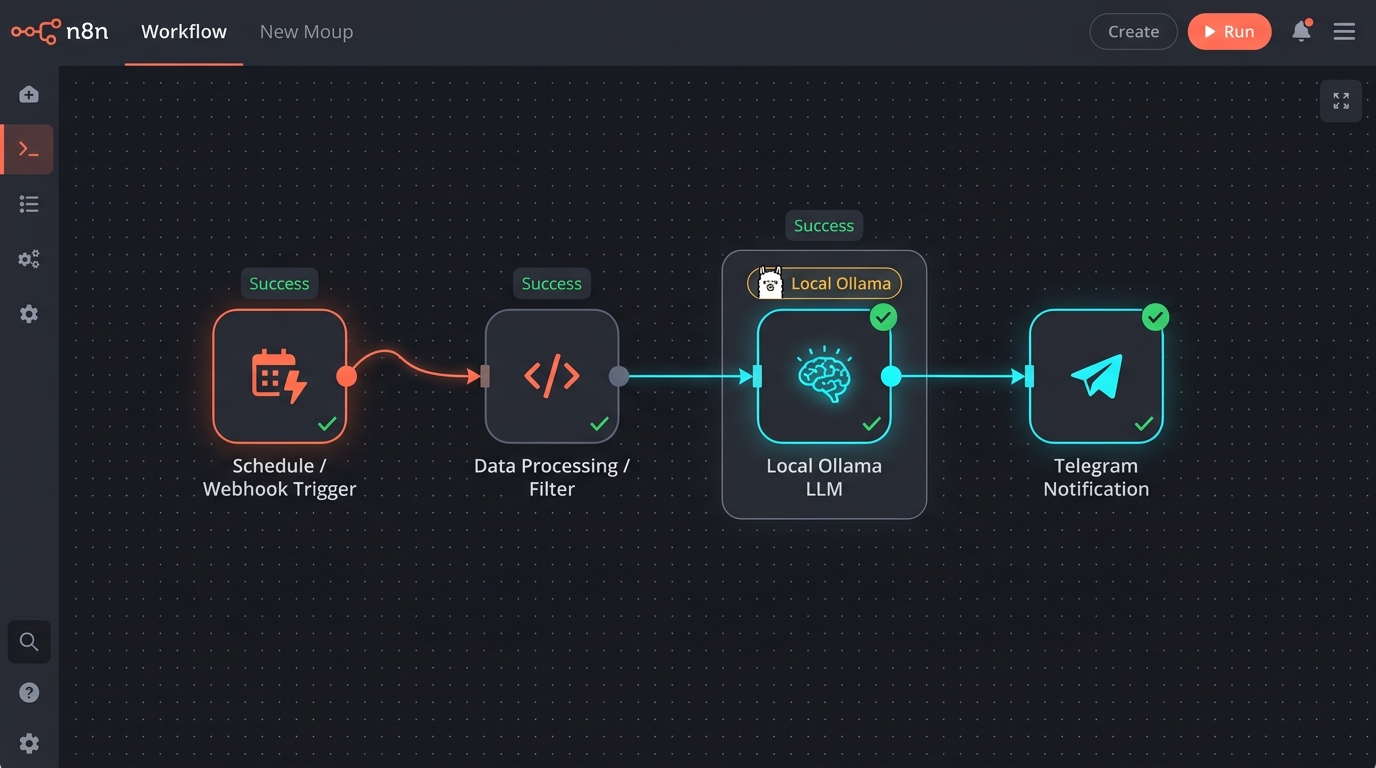 Fig. 1. n8n workflow canvas: schedule trigger ➔ data processing ➔ local Ollama LLM node (Llama 3.2 / Qwen 2.5) ➔ filtered Telegram alert
Why Pair n8n with Ollama?
- n8n is the undisputed gold standard of self-hosted workflow automation. It features an intuitive node-based canvas, hundreds of pre-built integrations (Telegram, Discord, PostgreSQL, Webhooks, GitHub, Google Sheets), and, crucially, native LangChain-powered AI Agent nodes.
- Ollama—as explored in our local AI homelab guide—is the cleanest way to run open-weights language models (Llama 3.2, Mistral, Qwen 2.5) on your local CPU or GPU.
By joining them inside a shared Docker network, you create a private autonomous agent capable of summarizing data, routing events, and triggering infrastructure tasks in real time.
Networking Architecture: How n8n Talks to Ollama
A common beginner mistake is attempting to configure n8n’s Ollama credentials using http://localhost:11434.
Inside a Docker container, localhost resolves to the n8n container itself, not the host machine. By defining a user-defined bridge network (ai-network), n8n can reliably route requests to Ollama using its internal container hostname:
http://ollama:11434.
Step 1. Deploy n8n and Ollama with Docker Compose
Create a dedicated directory:
1
2
mkdir -p /opt/n8n-ai
cd /opt/n8n-ai
Create docker-compose.yml:
1
2
3
4
5
6
7
8
9
10
11
12
13
14
15
16
17
18
19
20
21
22
23
24
25
26
27
28
29
30
31
32
33
34
35
36
37
38
39
40
41
42
43
44
services:
  ollama:
    image: ollama/ollama:latest
    container_name: ollama
    restart: unless-stopped
    ports:
      - "11434:11434"
    volumes:
      - ./ollama_data:/root/.ollama
    networks:
      - ai-network
    # If your host has an NVIDIA GPU, uncomment the block below for hardware acceleration:
    # deploy:
    #   resources:
    #     reservations:
    #       devices:
    #         - driver: nvidia
    #           count: all
    #           capabilities: [gpu]

  n8n:
    image: docker.n8n.io/n8nio/n8n:latest
    container_name: n8n
    restart: unless-stopped
    ports:
      - "5678:5678"
    environment:
      - N8N_HOST=n8n.local
      - N8N_PORT=5678
      - N8N_PROTOCOL=http
      - NODE_ENV=production
      - GENERIC_TIMEZONE=Europe/Kyiv
      - TZ=Europe/Kyiv
    volumes:
      - ./n8n_data:/home/node/.n8n
    networks:
      - ai-network
    depends_on:
      - ollama

networks:
  ai-network:
    name: ai-network
    driver: bridge
Start the containers:
1
docker compose up -d
Verify that both containers are running healthy:
1
docker compose ps
Step 2. Pulling an Efficient Model in Ollama
Workflow automation requires models that are fast, deterministic, and lightweight.
Top recommendations in 2026:
llama3.2:3b— The benchmark lightweight model. Runs at incredible speeds even on modest CPU hardware (consuming only ~2.5 GB of RAM).qwen2.5:7bormistral:7b— Ideal if you have dedicated GPU VRAM, providing superior structured JSON formatting and multi-step reasoning.
Pull the lightweight llama3.2:3b model:
1
docker exec -it ollama ollama run llama3.2:3b
Once pulled, type a test prompt (e.g., Hello, ready to work!) and press Ctrl + D to exit. The weights remain stored persistently on disk.
Step 3. Connect Ollama Inside n8n
- Open your browser and navigate to
http://YOUR_SERVER_IP:5678. - Complete the initial admin account creation.
- In the left navigation menu, click Credentials ➔ Add Credential.
- Search for Ollama and select it.
- In the Base URL field, enter the internal Docker endpoint:
1
http://ollama:11434
- Click Save. n8n validates the handshake immediately.
Step 4. Hands-On Project: An Intelligent Telegram News & Alert Digest
Let’s build a production-grade workflow: every morning at 09:00, n8n fetches raw technical feeds, passes them to our local Ollama model to strip noise and summarize key takeaways, and delivers a concise digest to a private Telegram channel.
1. Create a New Workflow
Click Add Workflow in the top-right corner.
2. Configure the Schedule Trigger
- Click + on the canvas.
- Search for Schedule Trigger.
- Set it to fire daily at
09:00.
3. Fetch Input Data
- Add an HTTP Request or RSS Read node.
- Provide an endpoint (e.g., an RSS feed of cybersecurity vulnerability advisories or tech headlines).
4. Introduce Intelligence: AI Agent + Ollama Chat Model
- Add an AI Agent node.
- Under Prompt Type, choose Define below.
- Insert your system prompt instructions:
1
2
3
You are an expert technical editor. Review the input text.
Identify the top 3 critical updates, provide a brief 2-sentence summary
for each, and format with clean bullet points. Be concise.
- Under the Model connector of the AI Agent node, attach an Ollama Chat Model sub-node.
- Select your stored Ollama credential and specify the model name:
llama3.2:3b.
5. Send Telegram Notifications
- Add a Telegram node.
- Select operation: Send a text message.
- Supply your Telegram Bot Token and Chat ID (refer to our server notification guide for bot setup).
- Map the message field to the AI output: ``.
Click Test step—within seconds, your Telegram client will receive an intelligent, noise-free summary compiled entirely by your local server.
Remote Access and Inbound Webhooks
If you wish to accept inbound webhooks from external services (such as GitHub commits, Stripe webhooks, or blog comment alerts), n8n must be accessible from the public internet.
Rather than forwarding port 5678 through your home router, expose n8n securely using Cloudflare Tunnel & Zero Trust. This allows you to bind a clean hostname (n8n.yourdomain.com) with zero open inbound firewall ports and layer Google SSO on top.
Conclusion
Combining n8n with local Ollama creates a sovereign automation powerhouse:
- Zero Recurring Costs: No per-task usage caps and zero third-party AI token invoices.
- Ironclad Privacy: Internal credentials, personal correspondence, and proprietary logs never leave your physical machine.
- Set and Forget: Once configured, workflows run autonomously for years.
Build your first workflow today and enjoy the power of private AI automation!